
NEWS
Microsoft 365 Companion Apps Leave Admins a Cleanup Job
Microsoft auto-installed Calendar, People, and Files companions on Windows 11, then told admins to uninstall them by December 16, 2026.

Microsoft will make its Calendar, People, and Files Microsoft 365 companion apps stop working after December 16, 2026, and it will not take them off PCs. Tenant admins have to strip the Windows 11 taskbar trio from managed devices themselves, and people on unmanaged PCs have to click Uninstall.
The same apps arrived the other way. In late October 2025, Microsoft began putting them on eligible Windows 11 devices through Microsoft 365 Apps updates, silently, with Copilot wired into two of the three. Calendar Copilot was still listed as coming soon when the retirement notice landed.
Microsoft Will Not Uninstall Them for You
Microsoft published Message Center notice MC1474111 on September 18, 2026, tagging it as a major change with user and admin impact. The notice covers worldwide enterprise customers that installed the apps. Automatic installation through Microsoft 365 Apps updates is already being phased out, and existing copies can keep running until the December date.
Updates and fixes, including security fixes, are no longer being provided. If something breaks in that window, Microsoft’s recommended fix is to uninstall the suite. The company also said it will not clear the admin-center checkbox that used to allow automatic installation, so a tenant that leaves that box ticked can confuse the later cleanup.
That one-way path is the whole job. Microsoft could push Calendar, People, and Files through the same update pipe that delivers Word and Excel. It will not reverse the pipe. Admins who already spent 2025 turning the apps off now have a fleet uninstall, an Intune assignment check, and a helpdesk note for anyone whose PC is not managed.
WHAT WE KNOW
- The date: After December 16, 2026 the apps stop working and lose support, and Microsoft wants them off devices by then.
- The data: Files, meetings, and contacts live in Microsoft 365 services, not in the companions, and removing the apps does not delete that data.
- The license: The companions shipped at no extra cost with eligible Microsoft 365 or Office 365 licenses, on Windows 11.
- The package: Uninstalling Calendar, People, or Files removes all three, because they ship as one suite.
WHAT IS UNCONFIRMED
- The reason: Microsoft has not said why the suite is being pulled after a short run as a default taskbar install.
- Calendar Copilot: Copilot in Calendar was still described as coming soon in the product posts that introduced it, and Microsoft has not said it ever shipped.
The notice still calls the companions taskbar apps meant to cut context switching. The next sentence tells admins to take them off every managed device in the tenant.
Three Taskbar Apps, One Shared Package
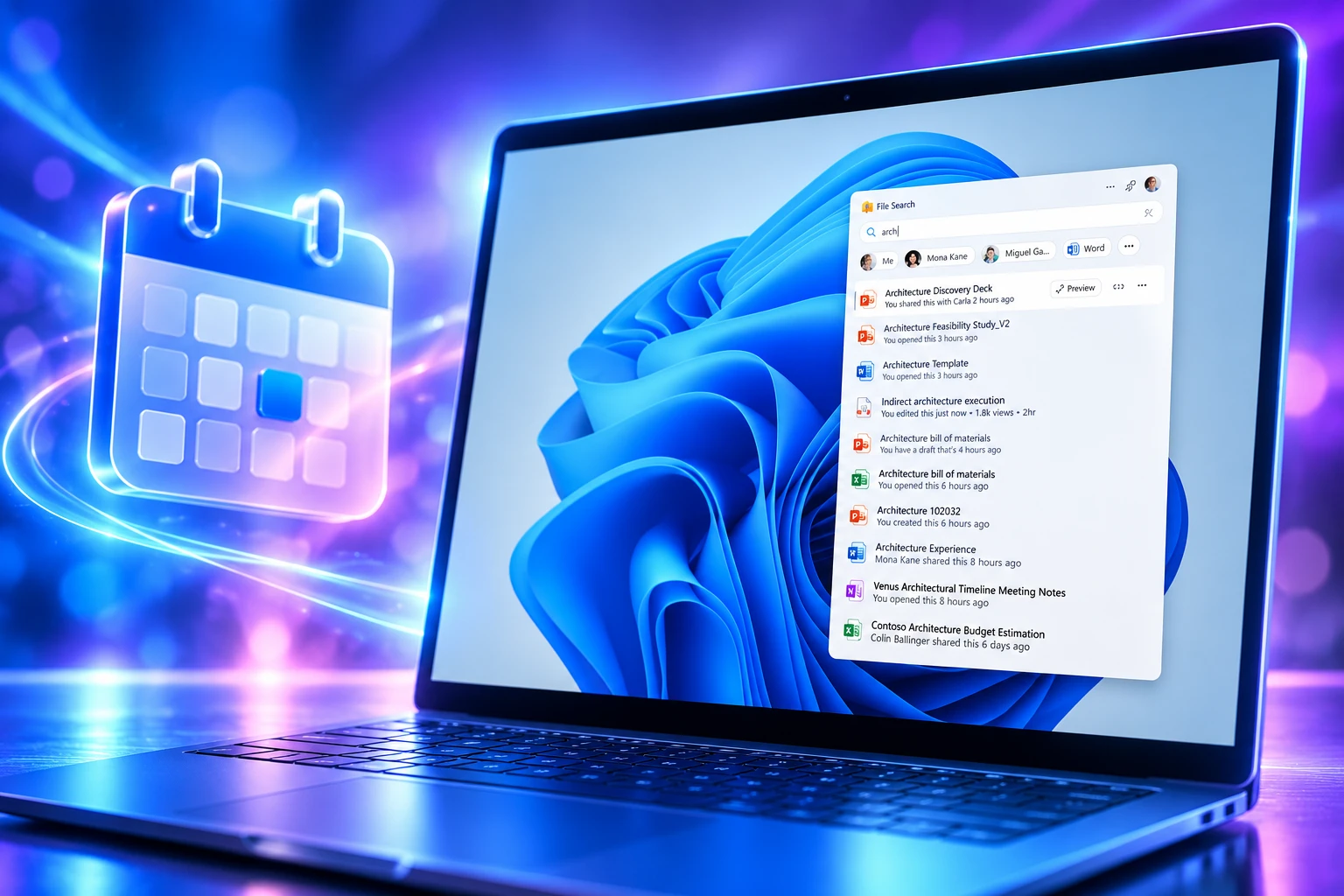
Microsoft 365 companions sat on the Windows 11 taskbar and pulled people, files, and calendar data through Microsoft Graph. Microsoft’s own setup pages told admins to pin them in a fixed spot and to treat them as startup apps so results were waiting at login. Each app also launched minimized unless someone turned off “Start app minimized when you log in.”
They were not a consumer toy. Eligible devices were Windows 11 PCs that already had Microsoft 365 Apps, and users needed commercial Exchange Online and SharePoint (OneDrive) Online service plans or they hit a “License required” screen. If a plan omitted Teams, People lost calling and chat, Files hid documents shared in chats and meetings, and Calendar lost Teams meetings and chat hooks.
WHAT EACH COMPANION DID
- People: Search the directory and prior Microsoft 365 contacts by name, title, location, department, project, or skill, open an org chart, and pin frequent collaborators.
- Files: Surface recent Microsoft 365 documents, preview them, share them, and reach cloud storage plus the Downloads folder, without a hop into Explorer.
- Calendar: Show the Microsoft 365 calendar from the taskbar, search by organizer, attendees, or title, and join a meeting in one click.
Microsoft Support still describes those People, Files, and Calendar apps as a way to stay in flow. Files companion, on the admin overview, was limited to Microsoft 365 files in search, so a random PDF that never touched OneDrive was never the point. The pitch was Graph, on the taskbar, all day.
Copilot Landed in People and Files
On October 28, 2025, Yash Kamalanath, a principal product manager on the Microsoft 365 companion apps team, said Copilot was already inside People and Files. He walked through grounded prompts on a colleague or a workbook, then a handoff into the full Microsoft 365 Copilot app with that context still attached. Copilot in the companions needed a Microsoft 365 Copilot license on Business or Enterprise SKUs. The companions themselves did not.
Microsoft 365 Copilot is built into People and Files, with Copilot in Calendar coming soon.
Yash Kamalanath, Principal Product Manager, Microsoft 365 companion apps team, Microsoft 365 Insider Blog
The Calendar pitch was meeting summaries, prep, and catch-up from the taskbar. Sample prompts on that post included “Suggest talking points for this meeting” and “Key takeaways from this meeting.” People Copilot was demoed with lines such as “What’s the latest from John.” Files Copilot was demoed with “Summarize this workbook.”
That Calendar agent is the feature Microsoft never had to unship, because the public description stayed on Copilot in Calendar coming soon. People and Files got the model. Calendar kept the promise. The retirement then takes all three icons together, Copilot bits included, and points anyone who actually used them back at Outlook, Teams, and the standalone Copilot app.
The Opt-Out Toggle Microsoft Will Not Clear
Microsoft’s own overview still says that, starting in late October 2025, Windows 11 devices with Microsoft 365 Apps would automatically install the companion apps as part of the update process, in the background, without interrupting the user. Alternate rollout was Intune or another software distribution tool. The off switch lived in the Microsoft 365 Apps admin center, under Device Configuration and Modern App settings, as “Enable automatic installation of Microsoft 365 companion apps.”
That toggle shipped on. Admins who wanted a clean taskbar had to find it. Preview-channel tenants saw the three icons even earlier, and by June 2025 the suite was already circulating in Beta and Preview with uninstall scripts aimed at the Microsoft.M365Companions package. The complaint from that period was blunt and practical: three extra taskbar slots, three startup processes, no single combined icon.
Microsoft also added a pin control so Copilot and the companions could be locked to the taskbar on Intune-managed Windows 11 devices. Users could unpin them. They could not stop a tenant-wide auto-install unless someone unchecked that box. Leave a Required assignment in Intune and the apps come back after you remove them, which is the trap the retirement article now spends several steps warning about.
THE COMPANION APP TIMELINE
- Late October 2025: Microsoft begins automatic installation on Windows 11 devices that already have Microsoft 365 Apps.
- October 28, 2025: Copilot ships in People and Files; Copilot in Calendar is listed as coming soon.
- September 18, 2026: Message Center notice MC1474111 opens the retirement window, ends new auto-installs, and cuts updates including security fixes.
- December 16, 2026: Remaining companion apps stop functioning and are no longer supported.
The install was an update. The removal is a project. That gap is why the retirement reads like a bill for last year’s default, not like a quiet feature sunset.
How to Remove the Companion Apps Before December
Microsoft’s admin guidance for companion retirement is a six-step tenant job: stop every install path, tell staff, scrub internal catalogs and training, uninstall from managed devices, instruct unmanaged users, then watch reporting until the package is gone. Intune can remove the apps however they got there. Pinning and auto-start do not have to be undone first.
The order matters. If a Required or Available-for-enrolled-devices assignment still exists on the Microsoft 365 companion apps Win32 app, Intune puts the suite back after you uninstall it. Microsoft also recommends clearing the automatic-installation checkbox, because its own change does not flip that setting off. Some devices need a restart. The apps can stay visible until the user closes them or signs out.
ADMIN REMOVAL PATHS
| Path | Who acts | Microsoft’s step | Trap |
|---|---|---|---|
| Microsoft 365 Apps auto-install | Tenant admin | Uncheck Enable automatic installation of Microsoft 365 companion apps | Microsoft’s retirement change does not clear that checkbox |
| Intune or other distribution | Tenant admin | Delete Required and Available assignments, then create an Uninstall assignment | A leftover Required assignment reinstalls the suite |
| Managed device cleanup | Tenant admin | Uninstall through Intune and monitor Device install status | Offline PCs stay pending until they check in |
| Unmanaged PC | The user | Settings, Apps, Installed apps, Microsoft 365 companions, Uninstall | Microsoft will not auto-remove these copies |
On an unmanaged PC the other route is Windows Search. Type Calendar, People, or Files, right-click the app, and choose Uninstall. Uninstalling one app removes all three. Microsoft’s template email for staff says admins will handle most devices, then repeats those two user steps for anyone IT does not manage.
Stop Every Install Path First
The retirement article treats leftover installers as the failure mode. Internal software catalogs, old Intune Win32 packages, and the admin-center toggle all have to go quiet before the uninstall assignment runs. Otherwise the next check-in looks like a successful install of a product that is already out of support.
The Intune Assignment That Puts Them Back
If the companions reappear, Microsoft’s troubleshooting tree has one branch: find the Microsoft 365 companion apps Win32 app in Intune, open Assignments, and delete Required. Then uninstall again. During the retirement window there is no patched build to wait for, so a broken companion is an uninstall ticket, not a helpdesk loop.
Outlook and Teams Inherit the Work
Microsoft’s replacement list is the software people already had. For calendar and people, use Outlook and Teams. For files, use Windows Search Box, File Explorer, SharePoint, OneDrive, Word, Excel, PowerPoint, and similar apps. Copilot is offered as another search path when someone remembers only a few details.
That is not a successor on the taskbar. It is a return to the context switches the companions were sold as avoiding. Anyone who pinned a collaborator in People, joined a stand-up from Calendar, or previewed a deck from Files goes back to the host apps that still hold the data. The Graph records stay. The three icons do not.
Admins still have to say that out loud, because a dead Calendar tile on December 17, 2026 will look like a broken Outlook, not like a retired companion. Microsoft’s own mail template is built for that confusion. It tells staff the apps may vanish sooner if IT uninstalls early, that data is untouched, and that Copilot remains a way to find the same meetings, people, and files.
The suite had a short public life as a default on Windows 11 work PCs, a Copilot layer on two of the three apps, and a Calendar agent that stayed on the coming-soon list. After December 16, 2026 the binaries stop. Until then they sit on taskbars without patches, waiting for someone to remove a product Microsoft once installed by itself.

Edinburgh Opens a 2027 Tour Built for Time Trials

Korda Maps Auður From Meðalland to Irvine Bay

Apple Music Films Its New Logo in Mineral Oil

Oppo Prices the Pad Mini Above India’s iPad Mini

Austen Soaks Scotland Before Boelo Brings Weekend Gales

Volkswagen Sells the Osnabruck Plant to Clear a Board Fight

Apple’s Foldable iPhone Hinges on Samsung Display Supply

Saksham Gaur Finds He Is His Own Company’s Client

Tata Motors’ Iveco Tender Opens as Holders Still Decide

Onimusha Way of the Sword Preload Hits a Windows 11 Wall
-
 AUTO2 months ago
Volkswagen Sells the Osnabruck Plant to Clear a Board Fight
-
 NEWS2 months ago
Apple’s Foldable iPhone Hinges on Samsung Display Supply
-
 AUTO2 months ago
Tata Motors’ Iveco Tender Opens as Holders Still Decide
-
 BUSINESS2 months ago
Saksham Gaur Finds He Is His Own Company’s Client
-
 GAMING2 months ago
Onimusha Way of the Sword Preload Hits a Windows 11 Wall
-

 ENTERTAINMENT3 years ago
What is SD on Amazon Prime? – All You Need to Know
-

 BUSINESS2 months ago
Hyderabad 22-Carat Gold Jumps After a False Bargain
-

 NEWS2 months ago
iQOO 16 Locks 8,400 mAh While 100W Charging Holds