
NEWS
Windows 11 Indexes Folders From How You Actually Work
Windows 11 Search now adds frequently used folders to the index from file activity, a third path between Classic and Enhanced with no published threshold.

Windows 11 can now add the folders you open most to its search index without you picking them. Microsoft listed the change in the August 27, 2026 preview for versions 24H2 and 25H2, and left it on a gradual rollout, so installing the update does not guarantee the control appears.
The company still has not said how often a folder must be used. That gap sits on top of two older modes that already force a trade: Classic covers a short list of libraries, and Enhanced crawls the whole PC.
A Third Path Into the Search Index
Microsoft’s preview notes say Windows now automatically indexes your most used folders so those files show up in later searches. The switch lives at Settings, then Privacy & security, then Search, under the name Automatically find additional relevant locations.
Independent Windows 11 guide author Shawn Brink wrote that the indexer expands from file activity, including recent files and folders you open often, and that it can make those locations searchable by properties and content. Microsoft’s own notes do not name an access count, a time window, or a folder-size cap.
The September 8, 2026 security update, KB5124008, moved 25H2 to build 26200.9445 and 24H2 to build 26100.9445. The Search work from the August 27 preview, KB5120998 (builds 26200.9278 and 26100.9278), stays on the same gradual track, so two PCs on the same build can still disagree about whether the switch is there.
WHAT WE KNOW
- The control: It sits under Find my files in Search settings and can be turned on or off without shutting down Windows Search.
- What off does: Existing indexed locations stay in place, including folders the system already added on its own.
- The cleanup: The same page can list a Remove control that clears folders Windows added automatically, while locations you added by hand remain.
- The rollout: Availability varies by device, and Microsoft has not published a finish date.
WHAT IS UNCONFIRMED
- The threshold: No public figure says how many opens, days of use, or file types trip automatic indexing.
- Heavy folders: Microsoft has not said whether a busy photos library, a VM directory, or a synced cloud folder is treated like a documents folder.
- Fleet policy: No Microsoft Group Policy name for this switch has been published alongside the setting.
That missing rule is the whole difference between a helper and a crawler. A project folder on D:, a second-drive archive, or a tools directory you open every morning can enter the index because you use it, not because you checked a box.
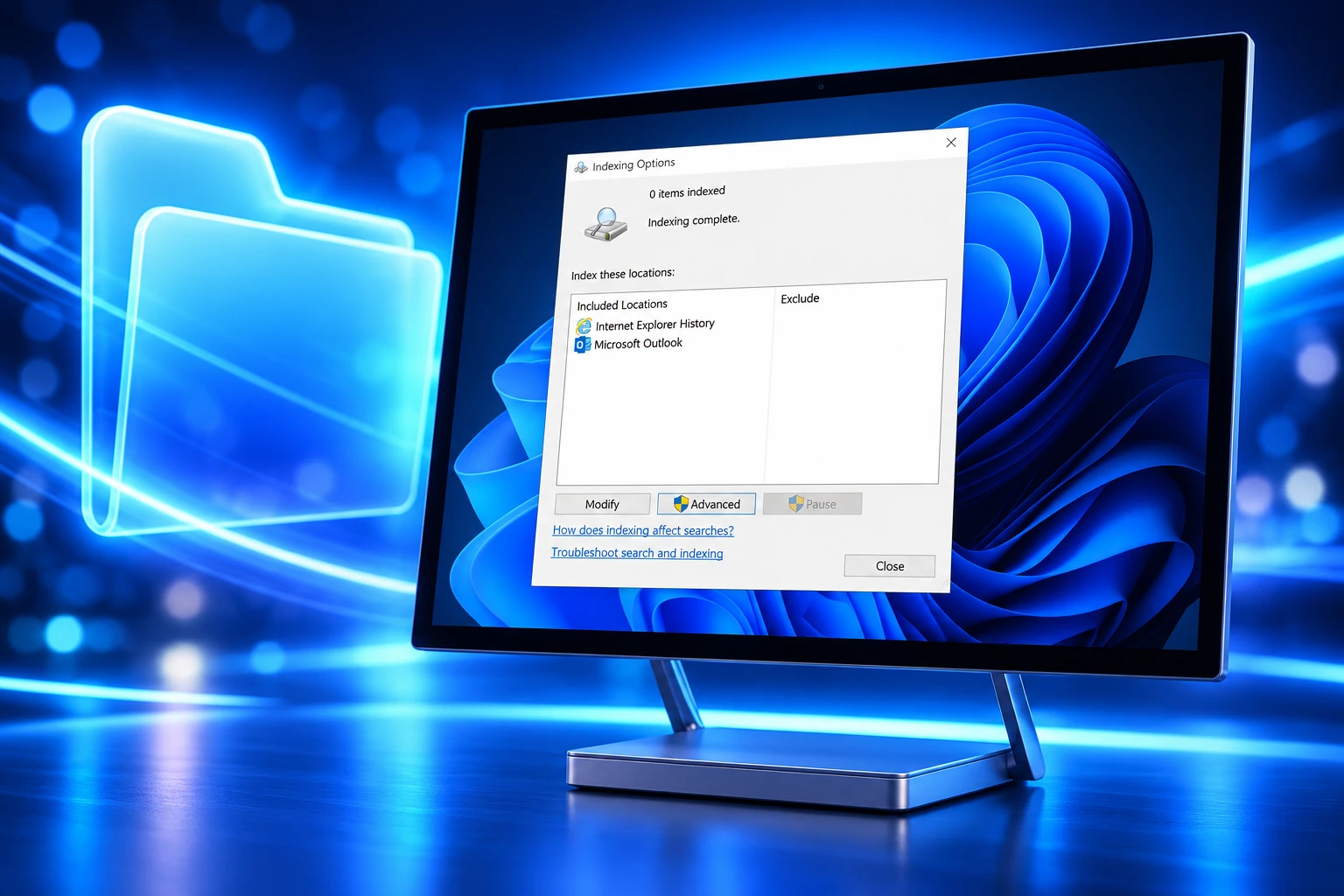
Classic Indexing Still Misses Working Folders
Windows Search does not scan the disk on each query. It keeps a catalog of names, paths, and, for many text files, the words inside them. Microsoft’s indexing FAQ says a first pass can take up to a couple of hours, after which the service watches for changes and updates the catalog in the background.
Under Find my files, Microsoft still offers two modes. Classic, the default, indexes Documents, Pictures, Music, and the desktop. Enhanced indexes the entire PC, including user folders and files, and Microsoft says it may use more system resources.
THREE WAYS FOLDERS REACH THE INDEX
| Path | What gets indexed | Who chooses |
|---|---|---|
| Classic | Documents, Pictures, Music, desktop, plus folders you add with Customize search locations | You, plus the default libraries |
| Enhanced | The entire PC, including user folders and files | You, by switching the mode |
| Additional relevant locations | Folders Windows treats as most used | The system, from file activity |
Classic is why a file on another drive, or in a custom tree under Users, can be invisible in Start search even when File Explorer can open it. Enhanced is why people with large disks, code trees, or virtual machines have been told to stay on Classic. The new control is the workaround that does not ask you to pick either extreme.
Microsoft’s FAQ also says installed apps may add their own data to the index. Outlook, for example, adds synced mail by default. File Explorer, Microsoft Edge history, and offline Outlook search all read that catalog, so a folder that slips in through usage is not only a Start-menu convenience.
400,000 Items Is Microsoft’s Strain Line
Microsoft’s support article on Search performance treats item count and database size as separate problems that compound. On a typical PC the indexer holds fewer than 30,000 items. A power-user machine may reach 300,000. Microsoft says you may see performance issues past 400,000 indexed items, and that the service can hold up to 1 million items before it may fail or drive high CPU, memory, or disk use.
INDEX LIMITS MICROSOFT PUBLISHES
- Typical load: Fewer than 30,000 items on a standard PC.
- Power-user load: Up to 300,000 items.
- Strain band: Performance issues may start above 400,000 items, and the hard ceiling is 1 million.
- Disk rule: The index is usually less than 10 percent of the indexed files; 100 MB of text should produce an index under 10 MB, unless you have many files smaller than 4 KB or you index computer code.
On Windows 11 the database file is Windows.db, stored by default at C:\ProgramData\Microsoft\Search\Data\Applications\Windows. Microsoft says to trust Size on disk, not the size Explorer lists, because of how the indexer compresses sparse files. If free space drops too low, indexing stops; Microsoft’s troubleshooting note says to keep more than 1 GB free.
A rebuild can take up to 24 hours. Indexing also slows when you are using the PC, waits for idle, and pauses on battery. Those back-off rules are why a newly added “most used” folder may not show up in search the same afternoon you opened it.
The new switch does not publish a cap of its own. A busy Downloads tree, a node_modules folder, or a game directory you visit often can push a Classic-mode PC toward the 400,000 band without anyone turning on Enhanced. That is the cost Classic users were trying to avoid.
How to Stop Automatic Folder Indexing
You do not have to take the third path. Microsoft says the setting is optional, and turning it off does not disable Windows Search. It also does not, on its own, eject folders the system already added.
STEPS TO KEEP INDEXING MANUAL
- Open Settings: Press Win+I, or search for Settings.
- Go to Search: Choose Privacy & security, then Search.
- Find the switch: Under Find my files, locate Automatically find additional relevant locations.
- Turn it off: Switch the control off if you want folders added only by hand.
- Clear auto-added folders: If the page offers Remove for automatically added search folders, use it; hand-picked locations stay.
- Edit the rest: Use Customize search locations, then Modify, for the Classic list, or add excluded folders from Searching Windows.
If the switch is missing, the PC is still waiting on the staged rollout, or it is not on 24H2 or 25H2 with the August preview or the September cumulative. Forcing unrelated third-party tools is a separate risk; the supported path is Settings, then Windows Update.
To see how large the catalog already is, open Settings, then Privacy & security, then Searching Windows, and read the Indexed count. That number is the one Microsoft’s 30,000 / 400,000 / 1 million bands refer to, and it is the first place to look after a week of automatic additions.
Search Results Now Carry a Source Label
Folder indexing is one of four Search changes in the same preview. Microsoft said the update makes Search more dependable, easier to scan, and clearer before you click. The other three sit in the same Settings page and in the Search home UI.
Microsoft’s Windows Update account posted the full notes on August 27, 2026, including the line about most-used folders.
— Windows Update (@WindowsUpdate) August 27, 2026
Replies under that post spent their energy on a stuck cursor and a wallpaper that reset to a solid colour, bugs Microsoft later added to the preview’s known-issues list. The indexing change rode in the same package and drew almost none of that argument.
THE FOUR SEARCH CHANGES IN KB5120998
- Search home: Microsoft said it has been simplified to cut visual clutter and make recent searches easier to reopen.
- Source labels: Results now show whether they come from an app, a setting, a file, a web result, or a Store suggestion.
- Web and Store: A new Search setting lets you keep those suggestions beside local hits, or drop them.
- Most-used folders: Windows can index those locations on its own, with the additional-relevant-locations control as the brake.
The web-and-Store toggle is the one that changes what Search feels like as a launcher. Combined with source labels, a local file and a Bing-style suggestion no longer have to look like the same kind of hit. Automatic folder indexing then decides which local files are even eligible. The three controls work as one product: cleaner chrome, clearer provenance, and a wider local catalog that grows from use.
What the Index Stores on Your PC
Microsoft’s indexing FAQ is blunt about the contents. By default, all file properties are indexed, including names and full paths. For files with text, the words inside are indexed so you can search the body, not just the title. You can switch a file type to properties only, which shrinks the database and makes in-file search weaker.
All data gathered from semantic indexing is stored locally on your PC (or local to your Cloud PC storage, when running on AI-enabled Windows 365 devices). It is not stored by Microsoft or used to train AI models. However, apps you install on your PC may be able to read the data in the index, so be careful with what you install and make sure you trust the source.
Microsoft, Search indexing in Windows
That last sentence is the privacy line the new switch changes in practice. A folder you never added by hand can still have its names, paths, and text copied into Windows.db. Microsoft says it does not take that catalog for model training. It also says any app on the machine may be able to read it.
On Copilot+ PCs, semantic indexing runs beside the classic catalog and is on by default. Supported documents include.txt,.pdf,.docx,.doc,.rtf,.pptx,.ppt,.xls, and.xlsx; images include.jpg,.jpeg,.png,.gif,.bmp, and.ico. Microsoft’s own example is a search for pasta that can also return lasagna, including pictures that contain either. The August preview also moved Image Search, Content Extraction, Semantic Analysis, and Settings Model to version 1.2608.951.0.
Semantic search is strongest in English (US, CA, AU, GB), French (FR, CA), German, Spanish (ES, MX), Japanese, and Simplified Chinese. Microsoft recommends leaving a Copilot+ PC plugged in for the first semantic pass. If automatic folder indexing pulls a large project tree into scope on one of those PCs, both the lexical index and the on-device semantic index have more to digest.
24H2 Home and Pro Lose Updates on October 13
The same preview that added automatic folder indexing also restated the clock on Windows 11 version 24H2. Microsoft said Home and Pro end of updates for 24H2 is October 13, 2026. After that date those editions stop getting fixes, time-zone updates, support, and monthly security and preview packages. Enterprise and Education editions of 24H2 remain supported until October 12, 2027.
THE SEARCH INDEXING CALENDAR
- August 27, 2026: KB5120998 preview lists automatic indexing of most-used folders for 24H2 and 25H2, under a gradual rollout.
- September 8, 2026: KB5124008 raises 25H2 to 26200.9445 and 24H2 to 26100.9445; the Search controls remain staged.
- October 13, 2026: 24H2 Home and Pro stop receiving updates.
A 24H2 Home PC that just grew its index from usage is a poor place to keep living files after that date. 25H2 keeps the same Search code path without that Home and Pro cutoff. Microsoft has not said when every eligible device will see Automatically find additional relevant locations, and it has not said what “most used” means in numbers. Until it does, the practical test is the Indexed count on Searching Windows, and the Remove control on the same Search page that turned the feature on.

Edinburgh Opens a 2027 Tour Built for Time Trials

Korda Maps Auður From Meðalland to Irvine Bay

Apple Music Films Its New Logo in Mineral Oil

Oppo Prices the Pad Mini Above India’s iPad Mini

Austen Soaks Scotland Before Boelo Brings Weekend Gales

Volkswagen Sells the Osnabruck Plant to Clear a Board Fight

Apple’s Foldable iPhone Hinges on Samsung Display Supply

Saksham Gaur Finds He Is His Own Company’s Client

Tata Motors’ Iveco Tender Opens as Holders Still Decide

Onimusha Way of the Sword Preload Hits a Windows 11 Wall
-
 AUTO2 months ago
Volkswagen Sells the Osnabruck Plant to Clear a Board Fight
-
 NEWS2 months ago
Apple’s Foldable iPhone Hinges on Samsung Display Supply
-
 AUTO2 months ago
Tata Motors’ Iveco Tender Opens as Holders Still Decide
-
 BUSINESS2 months ago
Saksham Gaur Finds He Is His Own Company’s Client
-
 GAMING2 months ago
Onimusha Way of the Sword Preload Hits a Windows 11 Wall
-

 ENTERTAINMENT3 years ago
What is SD on Amazon Prime? – All You Need to Know
-

 BUSINESS2 months ago
Hyderabad 22-Carat Gold Jumps After a False Bargain
-

 NEWS2 months ago
iQOO 16 Locks 8,400 mAh While 100W Charging Holds